CEOs more sensitive and emotionally unstable than others?

Bangalore: Ask CEOs to pick their favorite color and what they select will often be very different than what most people would pick. A personality test conducted on CEOs recently has revealed that on average, they are 'more sensitive and private than the typical person, and more likely to be emotionally unstable."

For the personality test conducted by USA Today, the CEOs were asked to rank their favorite colors, and their answers were then analyzed by an expert psychiatry professor. According to USA Today, many of the CEOs described the results as 'eerily accurate.' 



The test showed that CEOs were three times more likely than the average person to choose magenta as their color and significantly less likely to choose red or yellow. This led to the conclusion that CEOs 'are not as self-assured as the public at large, and they are more cooperative and less forceful than the typical person.'

While the test confirmed that the CEOs are meant for 'upper management' positions, they also proved more likely to be 'social workers, artists and teachers,' and the typical CEO is actually well-suited to be an administrative assistant.'

"CEOs see the big, bold and colorful picture and help others see the vision as well," said test-taker Edward Jennings, CEO of Copanion, which provides tax professionals with Web-based applications. "Leaders are storytellers, teachers and investors."

Psychiatry professor Rense Lange says that no one knows why so much can be learned about a person by the colors they choose. Those answers are buried deep in neuroscience, he says, but it's just a matter of time before marketers will be able to target products to consumers based on color preferences.

Do you want earn money by writing reviews on your blog?


There are several relatively easy ways to make some money from your blog such as using Google AdSense, selling private ad spots, and writing reviews. The downside with using Google AdSense and trying to sell private ad spots is your blog must have enough traffic to generate the clicks or page impressions. My guess is most of you aren’t getting hundreds of visitors to your blog each day (not yet at least) so you aren’t making much money from those methods of advertising.
So where does that leave us? If you haven’t heard of writing reviews on your blog to generate a decent stream of income then you might want to check it out.

How does writing reviews make me money?

It’s actually easier than you think. The first step is to sign up with a blog review network and submit your blog. Some of these companies have rules in place like the age of your blog (at least 6 months old, etc), where it’s hosted (blogspot, wordpress, etc), and page rank. They try to weed out spam blog sites which are usually not very old or of good quality. Make sure you read the fine print before you spend your time applying only to find out you don’t qualify.
Assuming your blog is approved, you can now browse the review marketplace looking for reviews to write about or another option is to wait for someone to approach you. I recommend you be the aggressor and sift through the marketplace so you can start making money asap.
Once you find a review you’d like to write about and meet the criteria to qualify, just take it and begin. You’ll create your blog post and follow the requirements of the reviewer, then submit it for approval. After it’s approved, you get paid. Pretty easy huh?

What blog review networks do you recommend?

There are several companies out there who pay you to write reviews on your blog but only two of them are worth talking about in my opinion. They are Sponsored Reviews and Pay Per Post.
sponsored reviews logo
Sponsored Reviews is great because they allow you to search for advertisers directly and bid on jobs. Their bidding system allows you to negotiate rates with advertisers in order to maximize your earnings. They also provide the largest payout of all review networks by only taking a 35% commission for their services. That means you can earn anything from $10 to 500+ for each review. Their user interface is one of the better ones out there and the only drawback to their service is the lack of advertisers. I’m sure it will continue to grow it’s advertising base so they are at least worth a look.
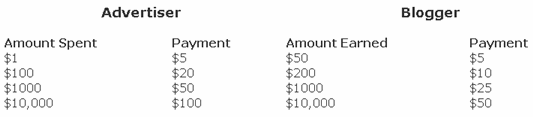
One other perk is their affiliate program. Earn up to $175 per Advertiser and $90 Per Blogger referred. Payouts are based on money spent by the advertiser and money earned by the blogger. See the chart below for payouts. Their average advertiser spends several hundred dollars so most referrals will be worth at least $25 (according to their website).
sponsored reviews payout chart
You’ll then want to put one of their ads on your site or a text link to start taking advantage of their referral bonuses. Can’t hurt to get an ad on your blog right? Get started with Sponsored Reviews now.
payperpost logo
Next up we have PayPerPost which is another great pay for review site. They offer the largest sponsored blogging network with the greatest amount of offers along with a forum where bloggers can post questions, etc. They also pay you a $20 bonus after you complete your first review post. The review post is easy…you just need to write about PayPerPost and they give you $20. Pretty quick way to make a quick $20.
One bad thing I noticed while browsing their marketplace is the restrictions on a few of the reviews. For example, you couldn’t write a review and post it on blogspot.com, wordpress.com, or myspace.com and you must be located in North America, Asia, or Europe only. That doesn’t mean if you have a blogger blog or wordpress blog using your own domain or hosted on your own site you can’t write a review. All I’m saying is make sure you read the review details carefully so you don’t waste your time writing a post only to discover you won’t get credit for it.
They also have a scoring system which might be a barrier to you on some post reviews. It’s usually the higher payouts that are looking for nice reviews from established high ranking sites. They utilize Google Page Rank and Amazon’s Alexa rankings to factor in what your site’s “score” will be.
PayPerPost also offers a referral affiliate program with some pretty nice payouts as well. You will get paid $15 for each referral once the referees first blog posting is reviewed, approved and then finally accepted 30 days later. This means they need to go all the way through the process in order for it to be a legit referral. Again, not a bad payout for just putting a banner or link on your blog. It’s cool because you can see which referrals you currently have signed up and the total amount you potentially could earn (assuming they convert all the way mentioned above).

Summary

If I were you, I’d sign up for both Sponsored Reviews and PayPerPost and see which one works best for you. There is no rule preventing you from having two accounts and writing reviews from both sites and you can promote whichever you choose. That’s what I did and it also gives you a bigger selection of available reviews to write. After you sign up, make sure you get some affiliate banners on your blog so you have another avenue to make money. Just imagine if you write a dozen or so reviews a month and get a couple referrals. You could easily earn a few hundred extra bucks a month for some pretty minimal work!
I wish these sort of sites were available when I was in college because I had tons of free time and needed to make money. I could have easily earned $500+ a month writing a couple reviews a day!

How to Install Google Analytics on Blogger


Google Analytics Blogger LogoWouldn’t it be nice to know how many people actually visited your blog each day? How about knowing which of your posts are the most popular? Well surprisingly Blogger doesn’t currently offer any native blog analytics but fortunately there is Google Analytics — available for free.
Google Analytics is a great tool that will show you all sorts of useful information about how people found your blog, keywords they searched on to find you, where they came from and even how long they stayed. You’ll learn more about where your visitors come from and how they interact with your blog. This is a must tool if you are trying to build a profitable blog otherwise you are flying blind!
This article will show you how to add Google Analytics to your Blogger blog. It’s a fairly simple process and doesn’t require any technical skill at all.

Step #1 – Setup a Google Analytics Account

Go to Google Analytics and sign in using your Blogger login. If your account doesn’t work for some reason, you can create a new one instead. Once you login you’ll see a screen that looks like this:
Google Analytics Blogger Sign Up Step 1
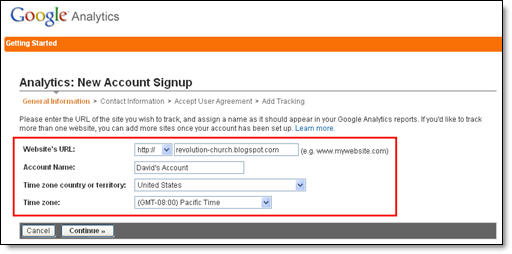
Click on the “Sign Up >>” button and proceed to the next step which will ask you for your general information. Website URL, Account Name, Country, and Time Zone. The screen will look like this:
Google Analytics Blogger Step 2
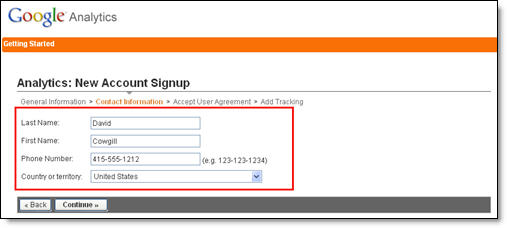
If you noticed, I just put my Blogger url (without the http://) and called it “David’s Account” because this is your top-level container for 1 or 100 different websites so it’s a good idea to name it something more general. The next step will ask you for your contact information which includes your first name, last name, phone number, and country. Easy so far right? :-)
Google Analytics Blogger Step 3
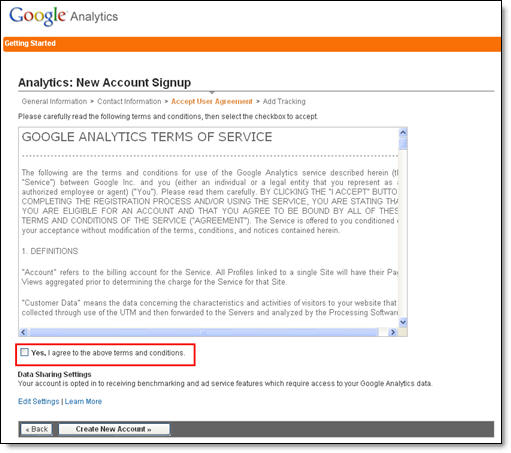
Your last step in signing up will ask you to accept the user agreement terms and conditions which you should read (just kidding…who actually ever reads these entire legal terms anyhow?).
Google Analytics Blogger Step 4
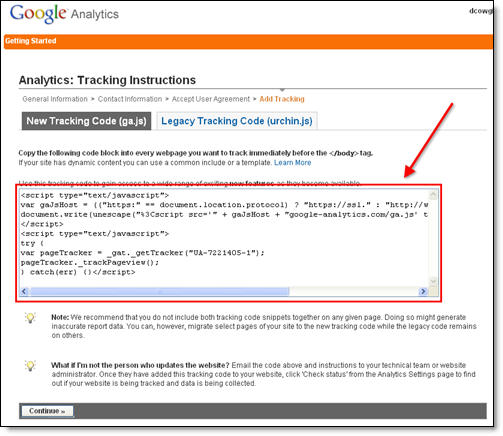
Now this next screen is very important. This is the code you will need to copy and paste into your blogger template. Go ahead and click into the box and it will automatically highlight the entire block of code for you. Now you need to copy that code and paste it into notepad or into a MS Word document. Save it as you’ll need to use it later.
Google Analytics Blogger Step 5
After you click on the “continue >>” button you will be taken to your brand new Google Analytics dashboard! You will see your blogger blog listed but with no analytical data….yet.
Google Analytics Blogger Dashboard
Ok, now you are done with setting up your Google Analytics account. The next step is placing the tracking code into your Blogger template so it can report back to Google Analytics and provide you with some cool data points.

Step #2 – Adding GA Tracking Code to Your Blogger Template

This is not a very difficult step even if you are afraid to touch your template code. Login to your Blogger account and then click on the “Layout” => “Edit HTML” tabs. This will bring you to the template code. Before you make any changes, I advice you to back up your template just in case there are any problems. After you’ve done so, continue reading.
Now in the edit template html code window, scroll all the way to the bottom of your template code and look for the tag. There should only be one of these closing tags in your template. If you can’t find it then your template wasn’t properly created and you should add one right above the  tag.The  tag should always be your last line of code in your template. It signifies the end of your template.
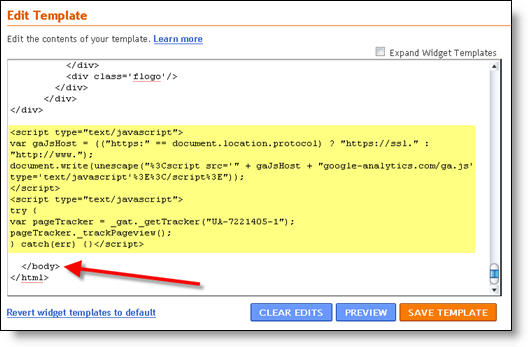
Ok, now go back to the code you saved before in a Word Doc from Google Analytics. You are going to copy it and paste it right above the  tag as illustrated in the image below. The yellow highlighted code is the new GA code I just pasted into my template.
blogger google analytics code 2
Save your template and you shouldn’t get any error messages. If you do, it’s most likely not related to this GA code and something else with your template itself. Assuming you’ve been successful with your save, you are all done embedding the GA code in your template!

Step #3 – Confirm Google Analytics is Tracking

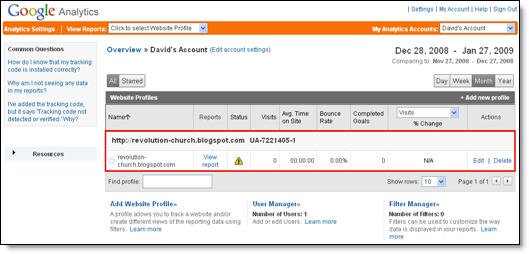
Go back into your Google Analytics account and look at your dashboard. Most likely you will see a little yellow exclamation mark under the “status” column that looks like this: google analytics tracking not installed. This means everything isn’t working properly yet which is fine because we are about to tell GA we just added the code. From your dashboard, click on the “edit” link which is located to the far right.
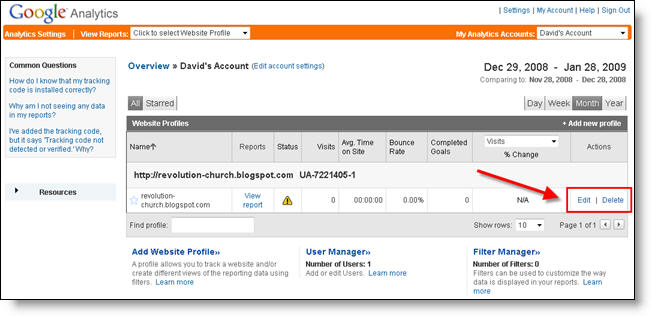
Google Analytics Blogger Dashboard Edit
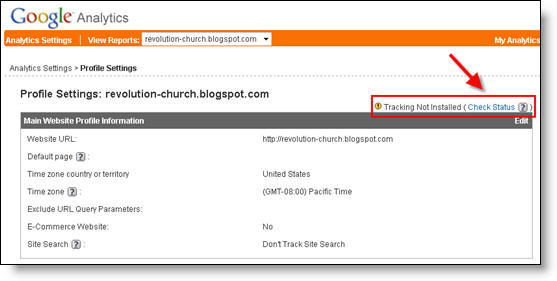
After you click on that link, you’ll see another screen like below. It will say “Tracking Not Installed” followed by a link “Check Status”. You’ll want to go ahead and click on that link which will tell GA to visit your site and look for the new code you just pasted in your template.
Google Analytics Blogger Dashboard Check Code
Assuming you pasted the code in there as instructed above, GA will find the new code and begin tracking everything on your blog. If you are still having problems, it’s most likely something to do with GA and you should read their help guide to troubleshoot your problem.
Google Analytics Blogger Dashboard Success
The message seen here, “Waiting for Data” means you have correctly setup GA and data is being gathered! Click on the top left Google Analytics logo and it will take you back to your dashboard. From there click on the “View report” link and that’s where all your very important Blogger visitor data will start appearing!
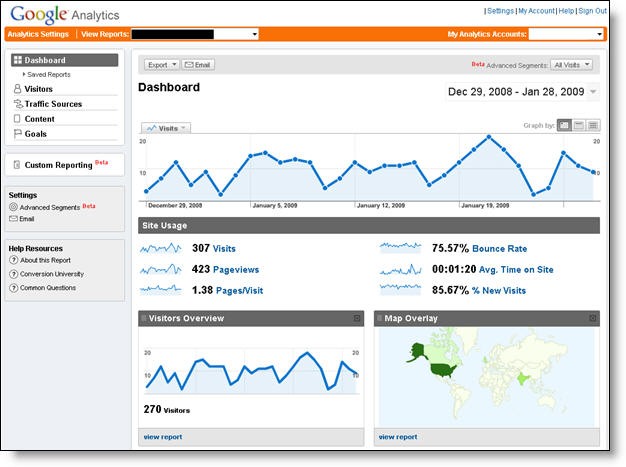
Google Analytics Blogger Dashboard Results
Now it usually takes an hour or so before you will see any data (maybe longer if you don’t get much traffic to your blog) so please be patient. Trust me, you’ll be logging in at least once a day just to see how much traffic your blog is getting. It’s very addicting and powerful information to learn from. You’ll be surprised which posts are your most popular and what countries people are coming from to read your blog.
Google Analytics is very powerful and we have just learned how to install it into your Blogger template. We haven’t even scratched the surface on the features and reporting it can do. For most Bloggers, this will be enough. Data will be collected and you will just review it.